Chords
Chord Build
Create your own chord: place fingers, mark strings open or muted, and let GTK detect the name.
- Guitar
- Ukulele
- Banjo
- Bass
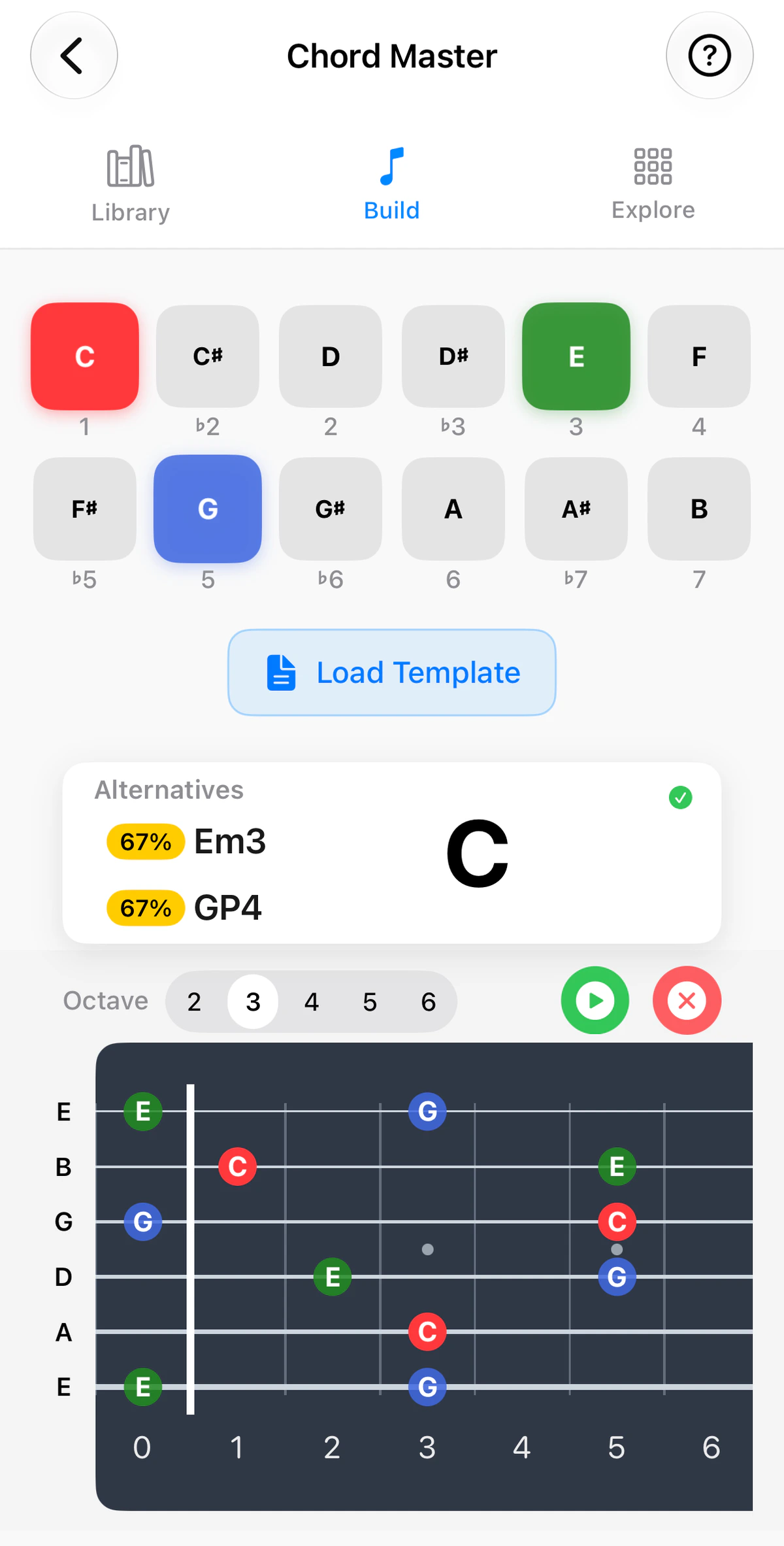
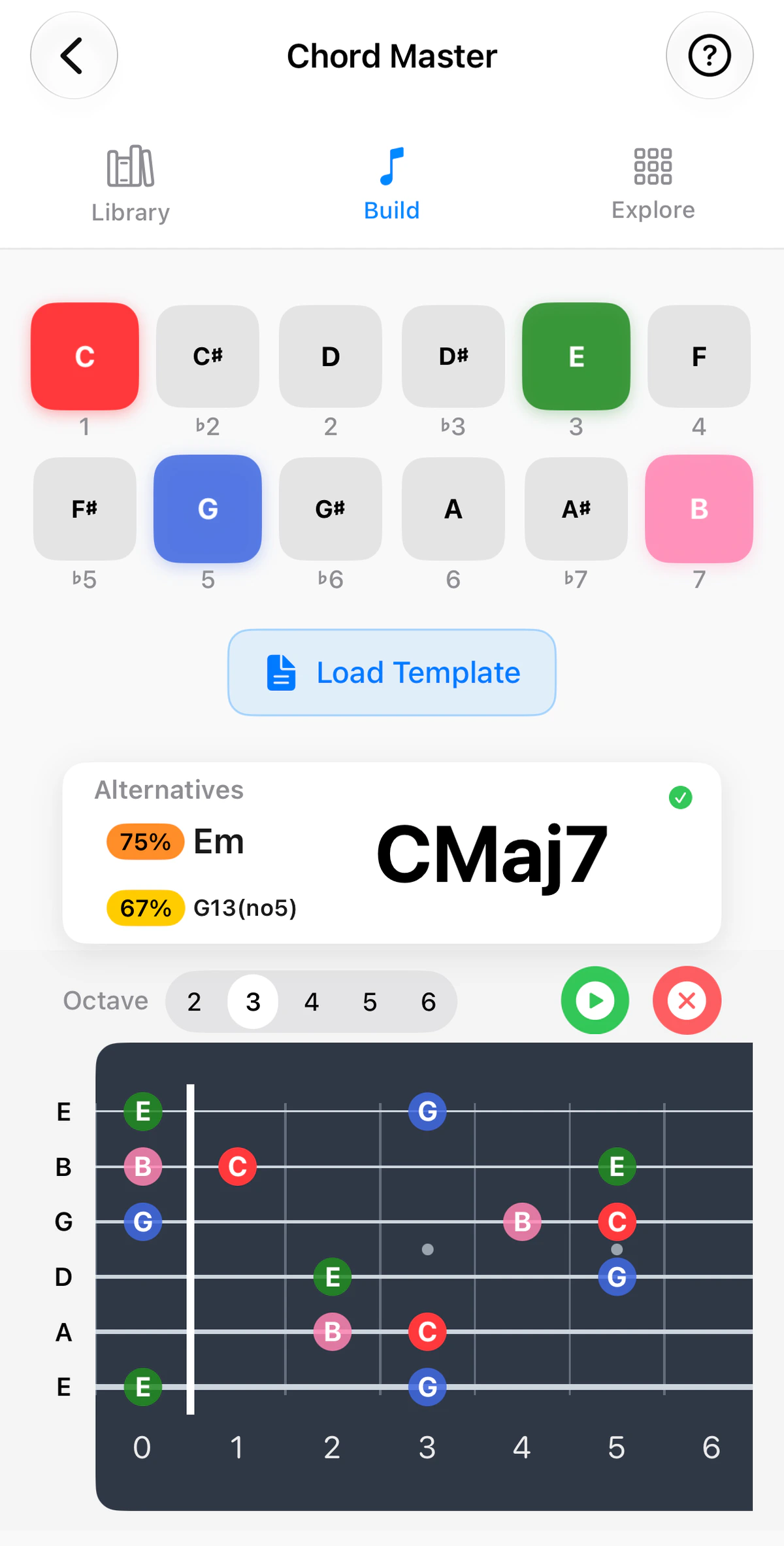
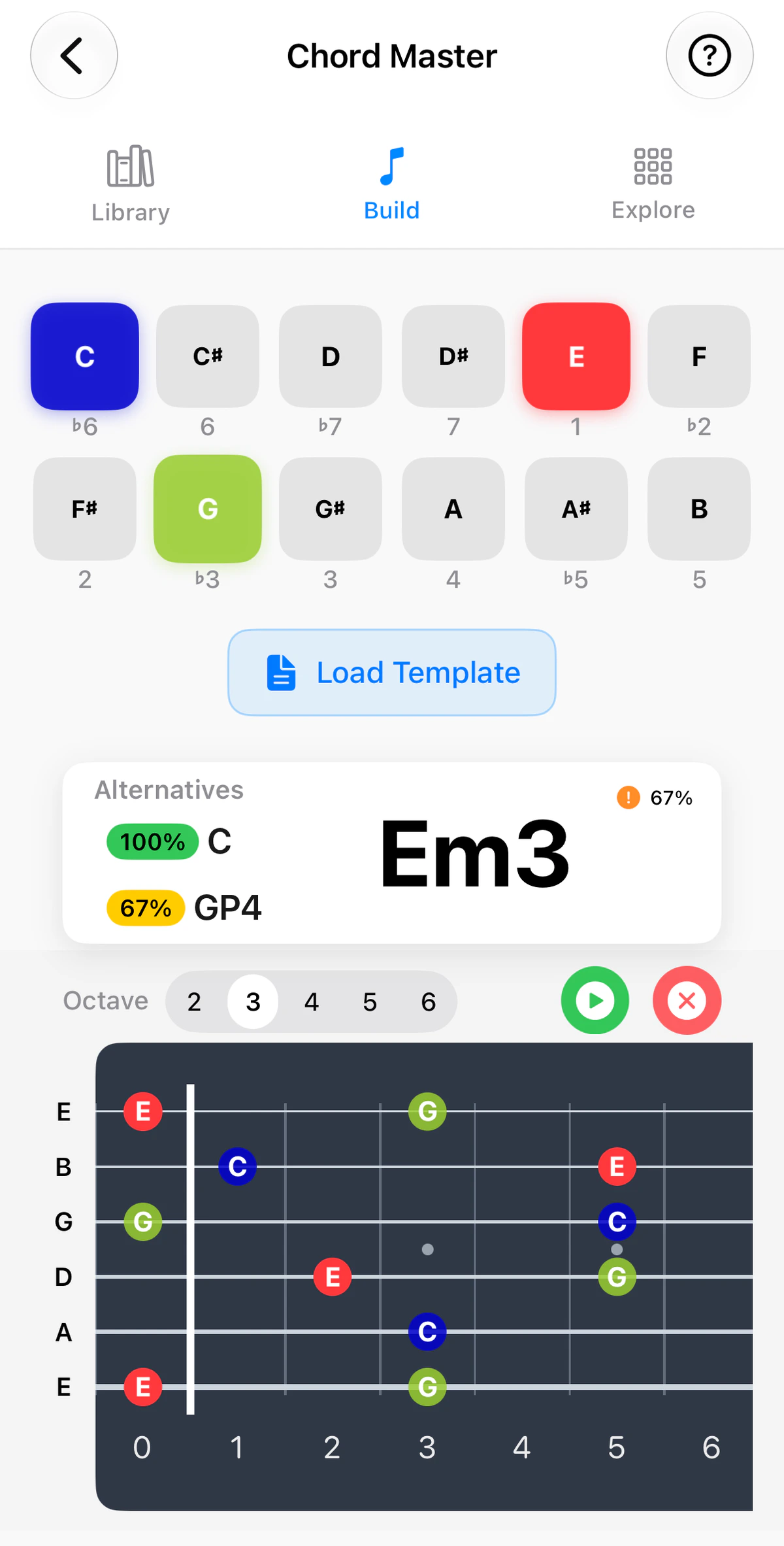
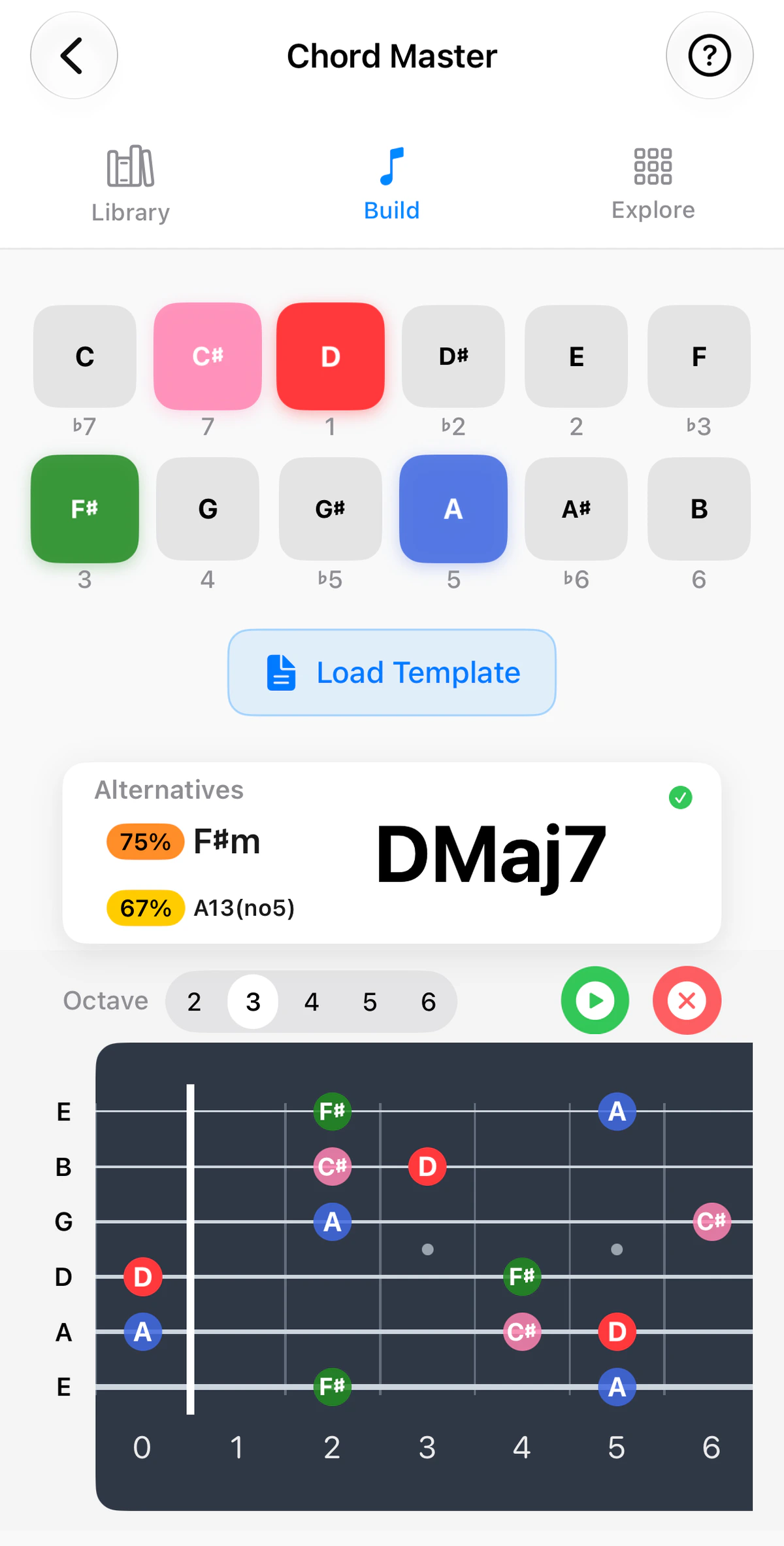
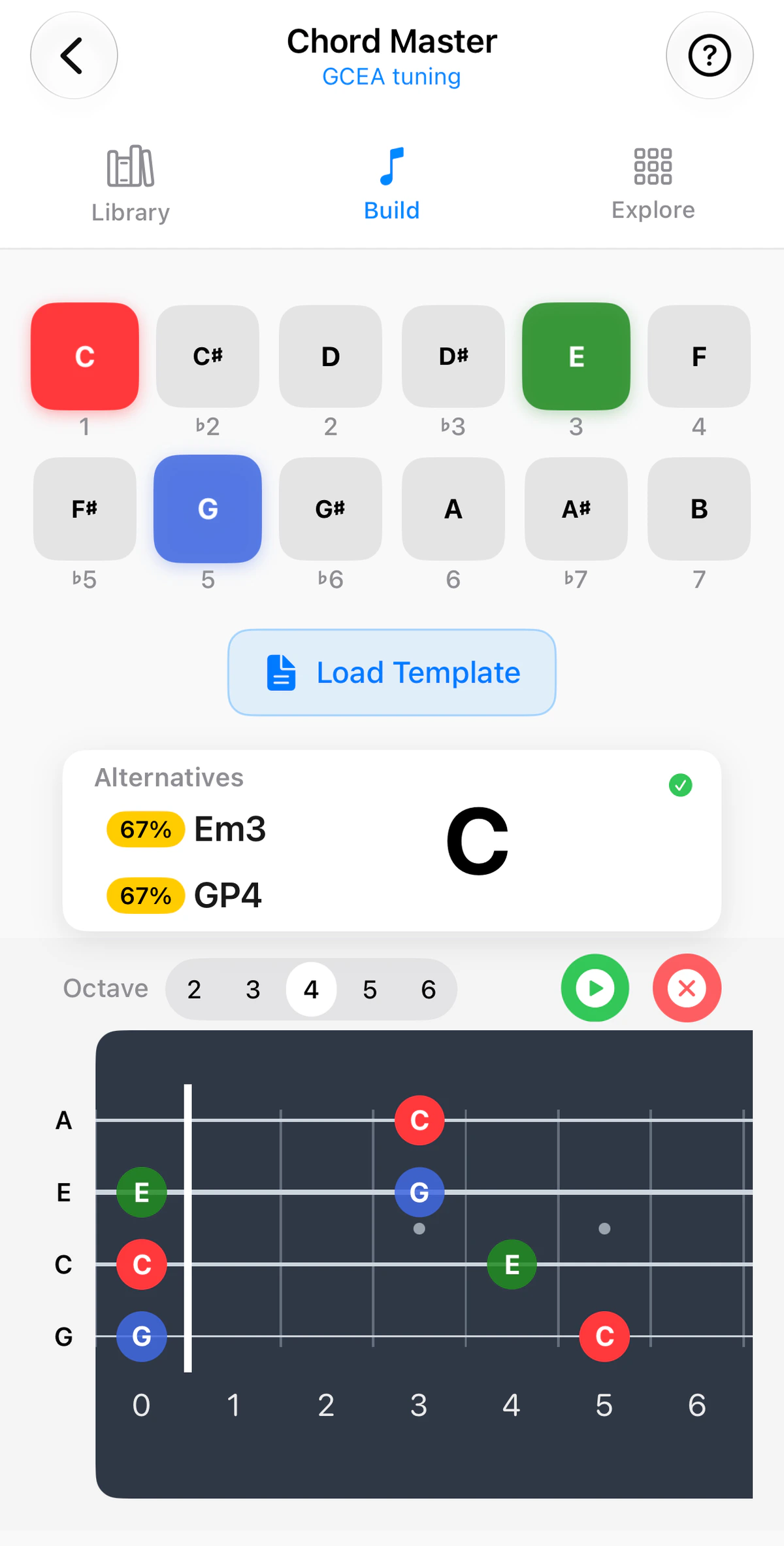
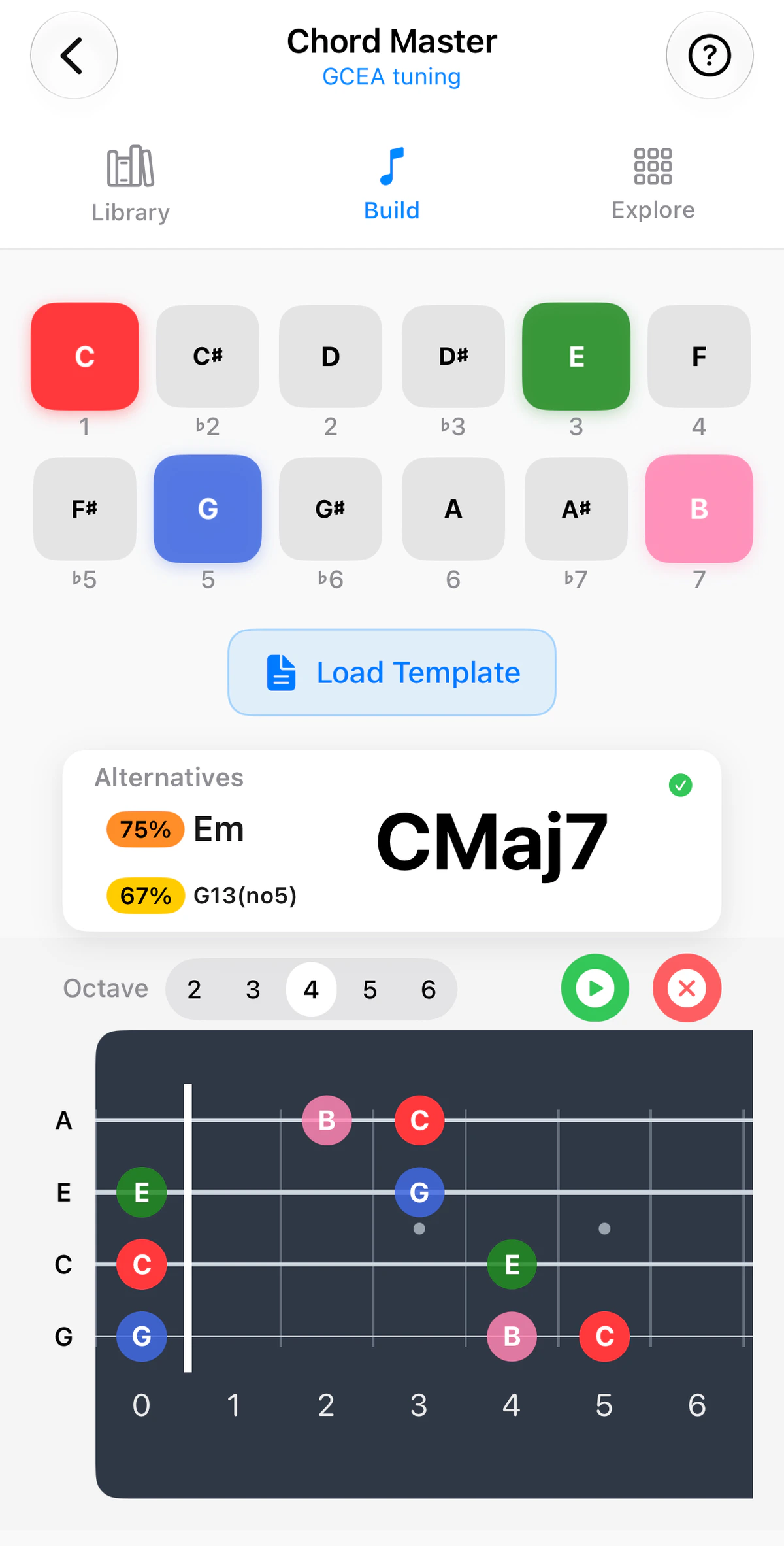
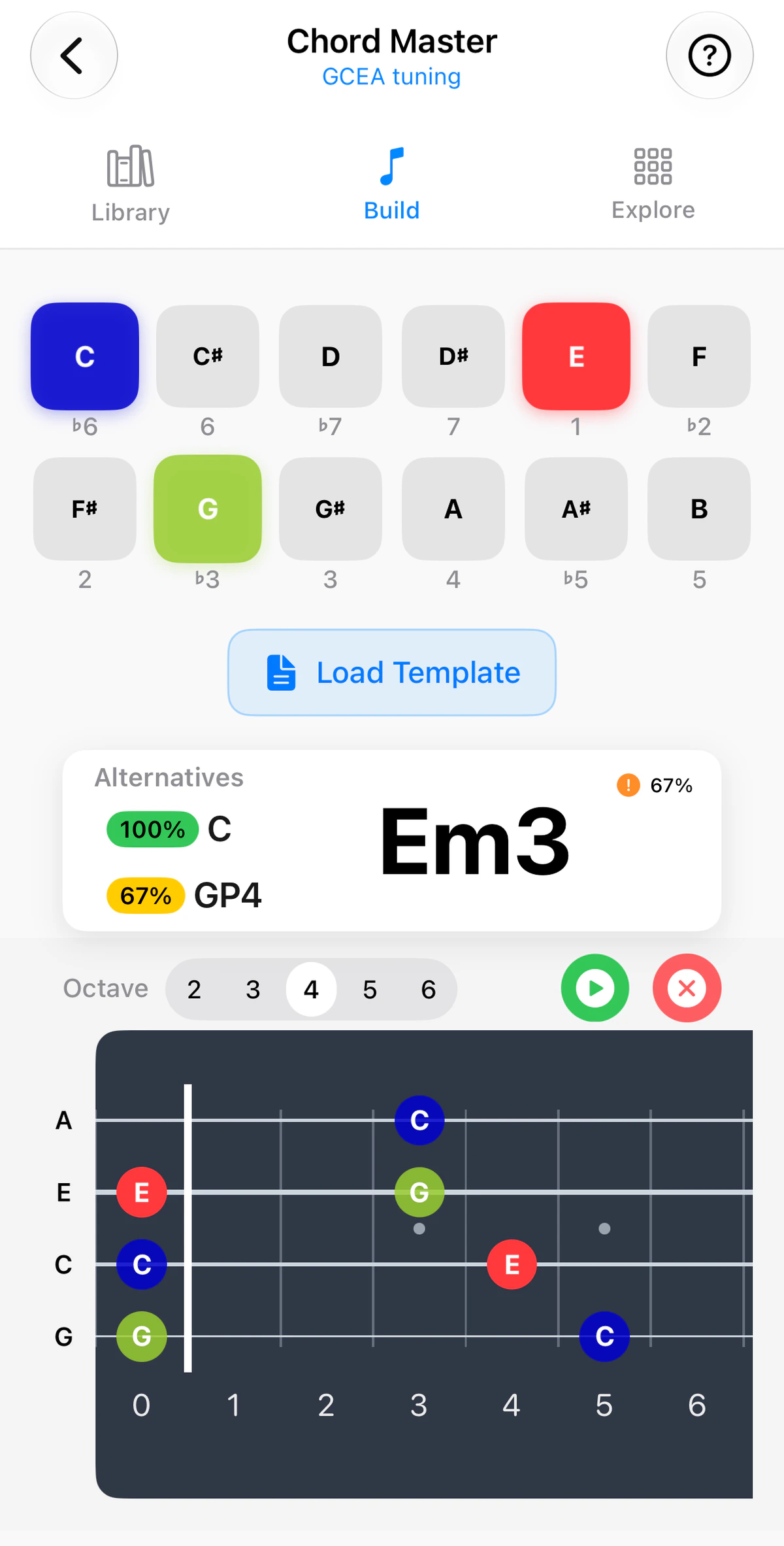
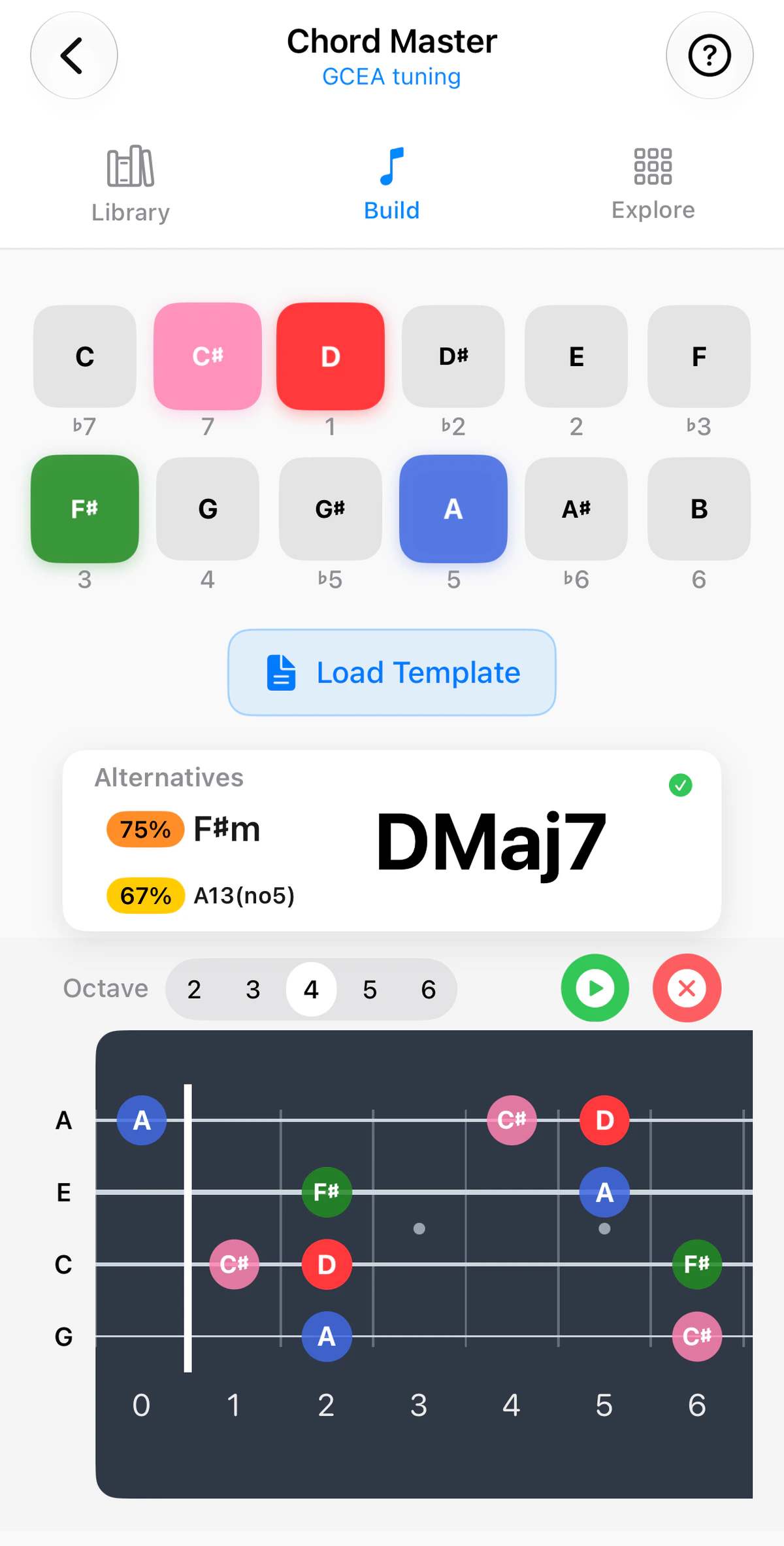
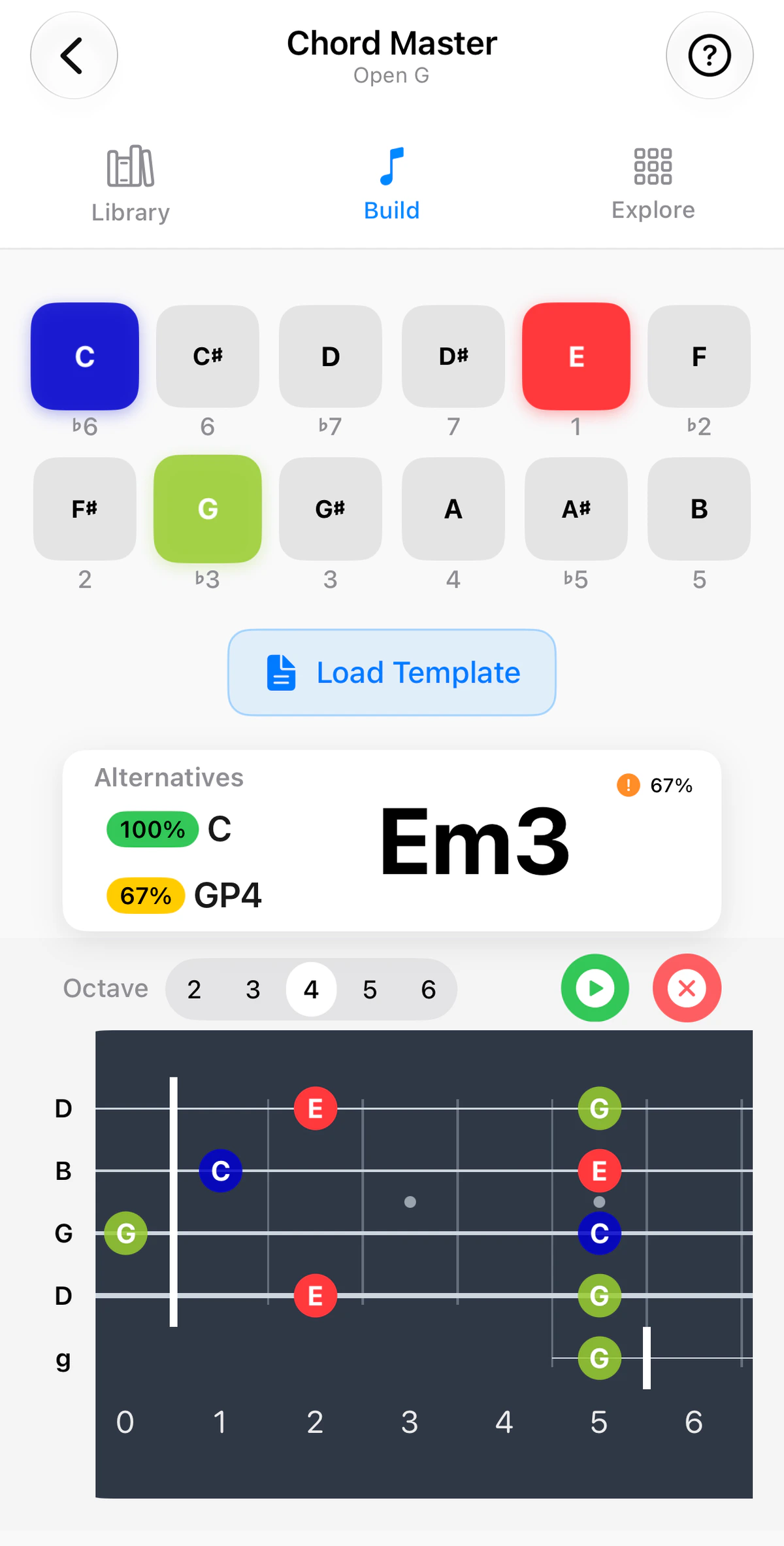
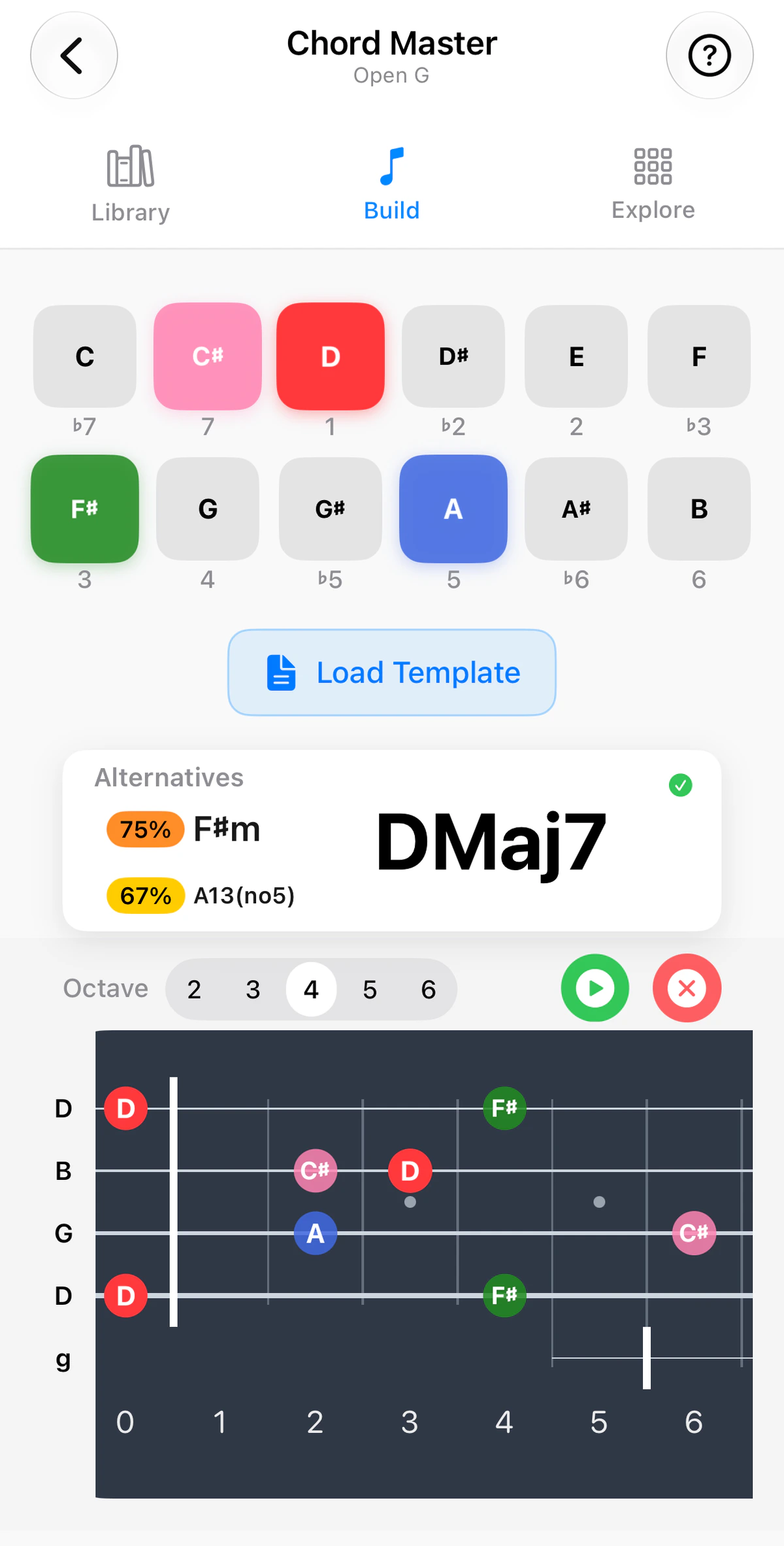
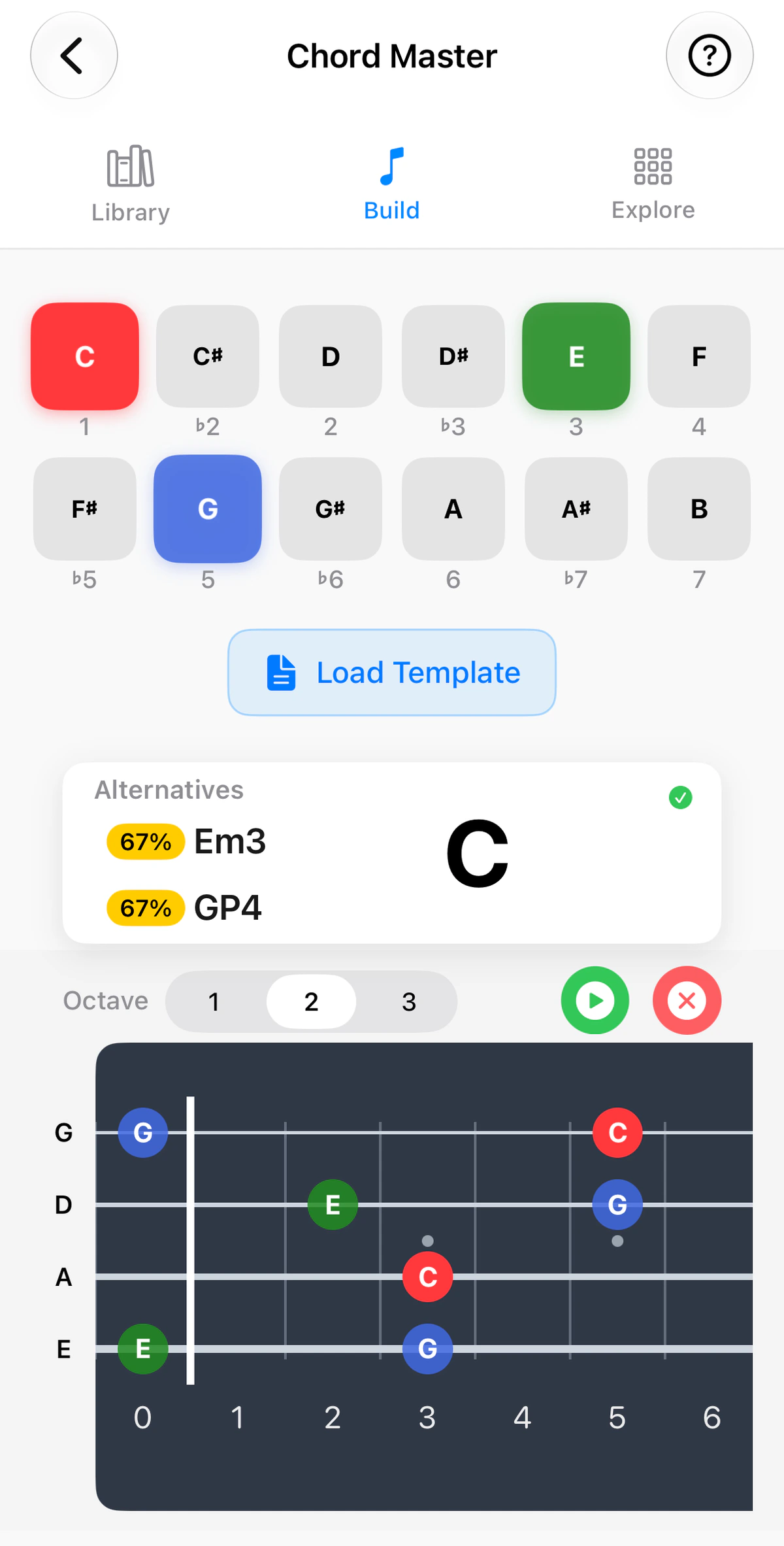
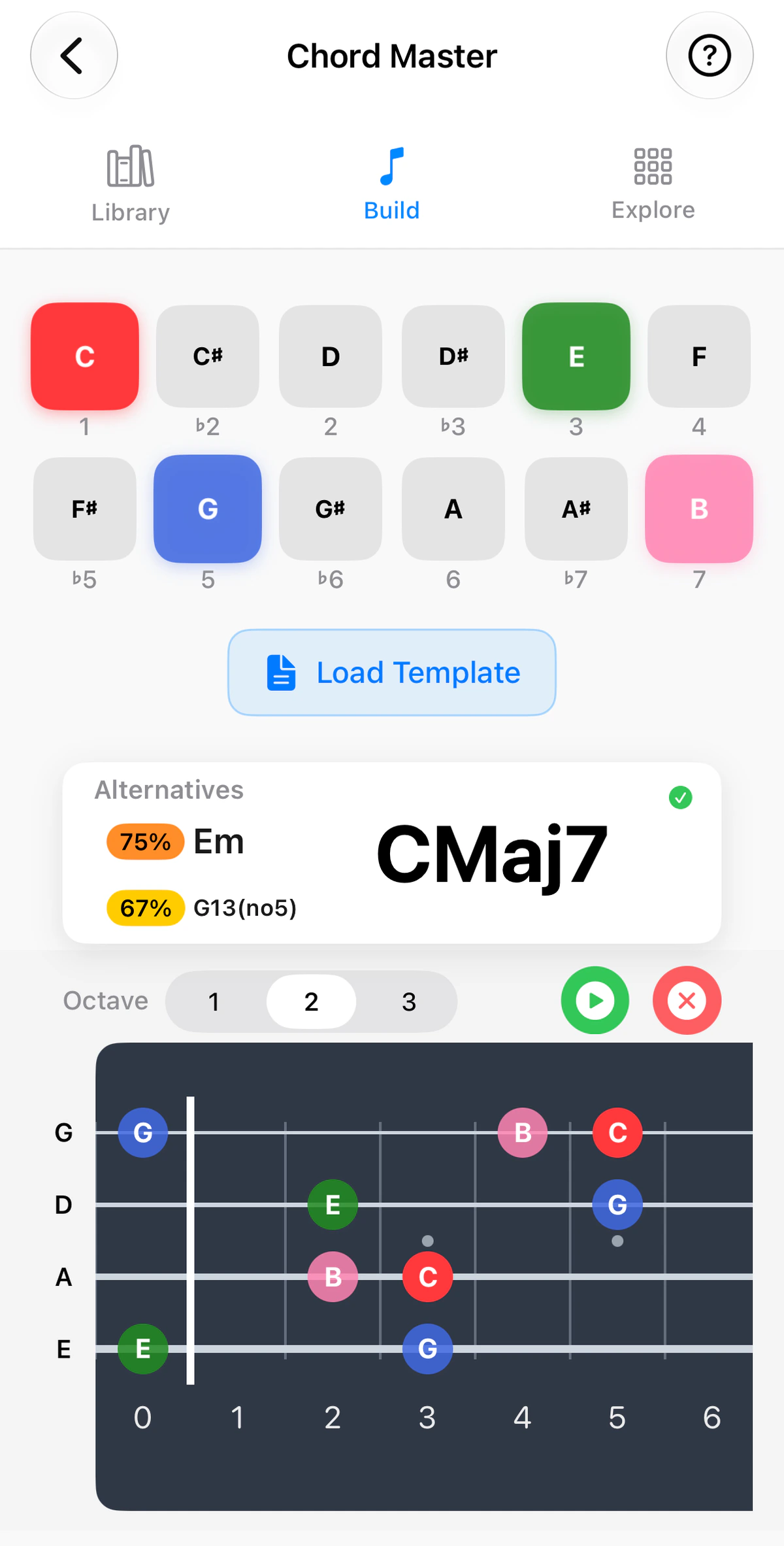
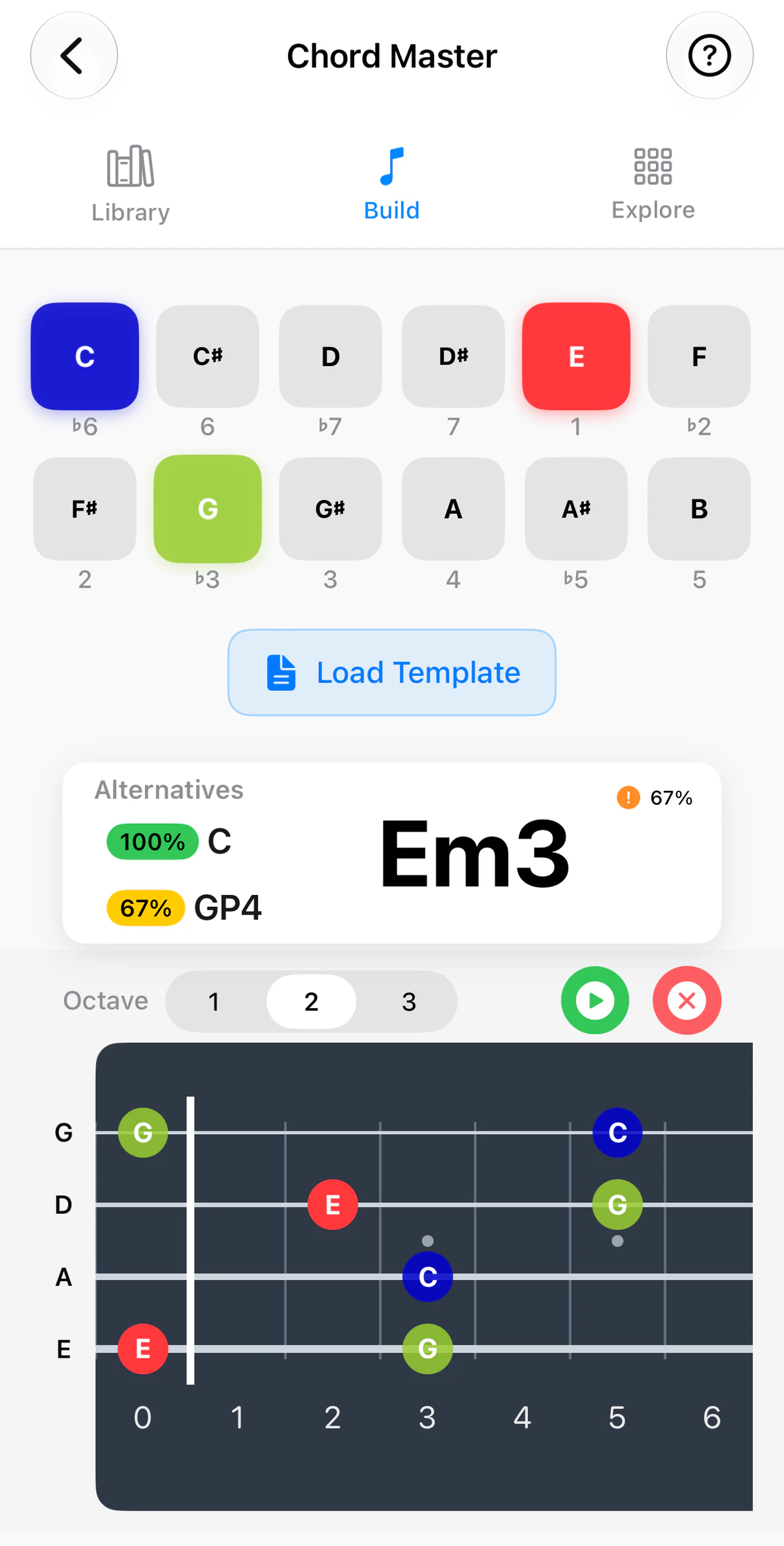
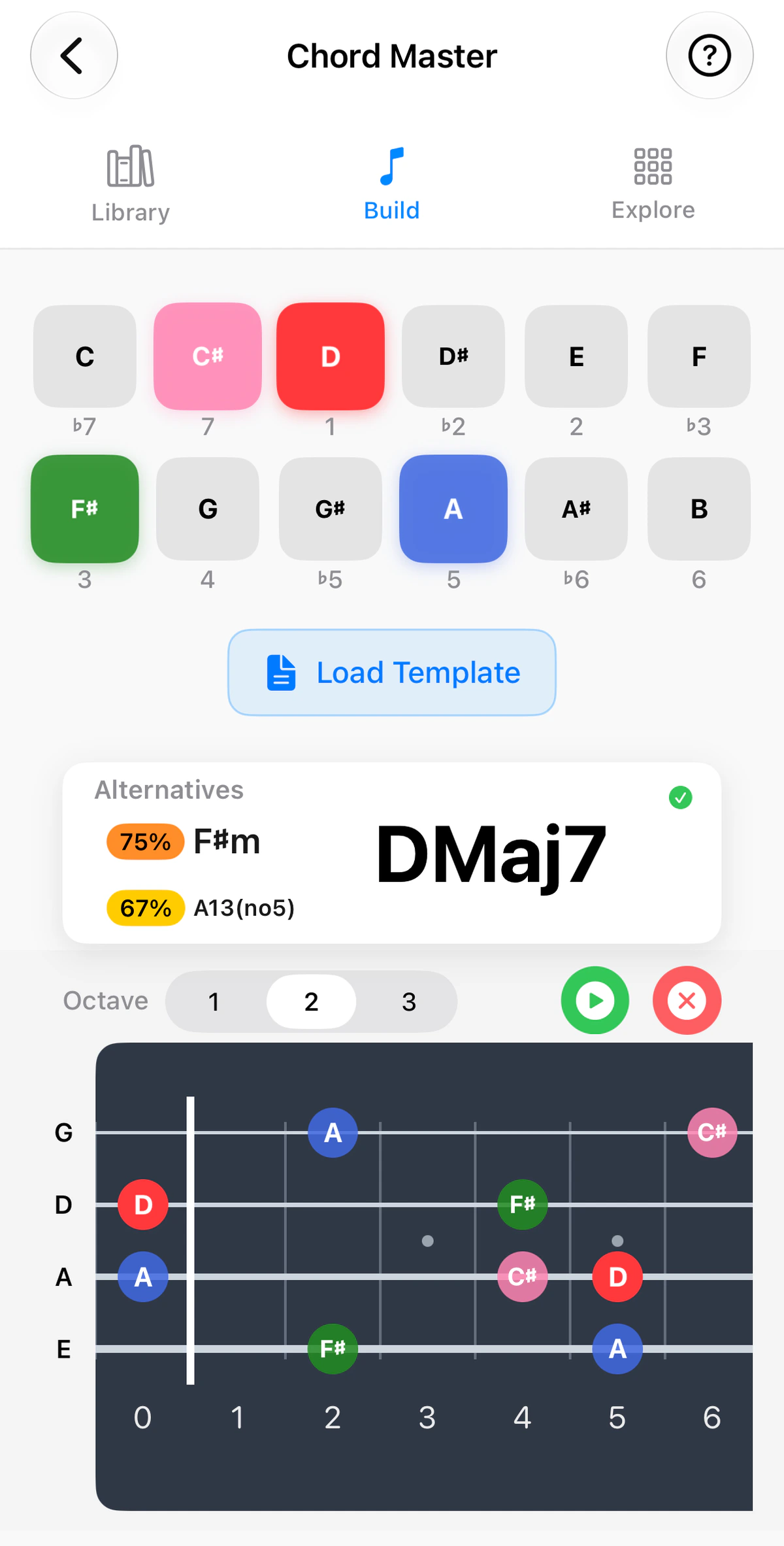
The Build tab in Chord Master lets you make a chord of your own and see what it is called.
Use the instrument tabs above the screenshots to see Build on guitar, ukulele, banjo or bass. The fretboard follows the instrument: four strings in GCEA on ukulele, five in Open G on banjo with its short fifth string, and four to six strings on bass.
Choosing the notes
Twelve buttons, one per note, run across the top, always in the order C to B. Each is labelled below with its interval from the chord’s root: 1, ♭2, 2, ♭3 and so on. Tap a note to switch it on. The colours follow the root of the chord you are building: the root is always red, and the labels under the buttons count from it. The same colours appear on the fretboard.
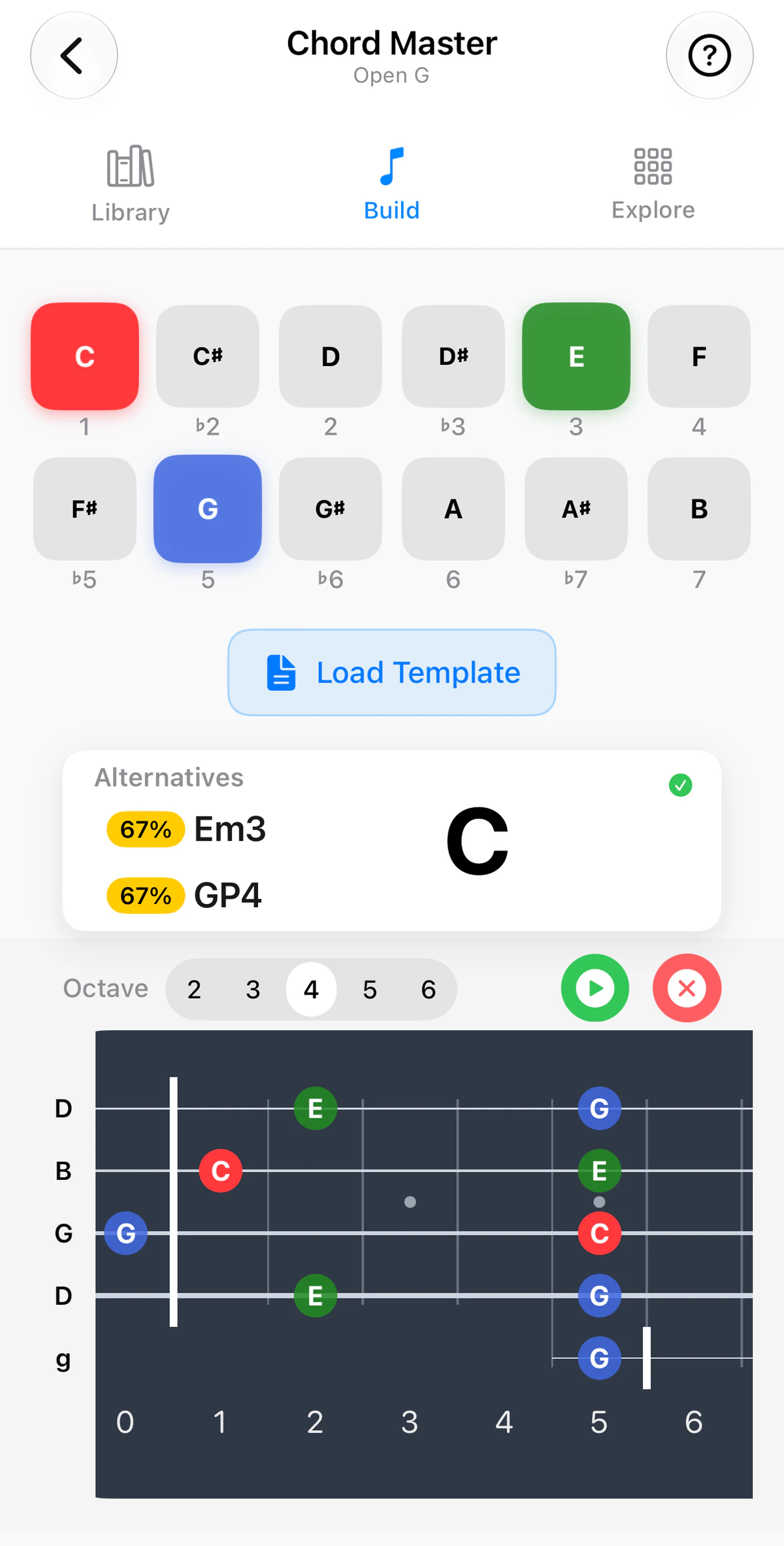
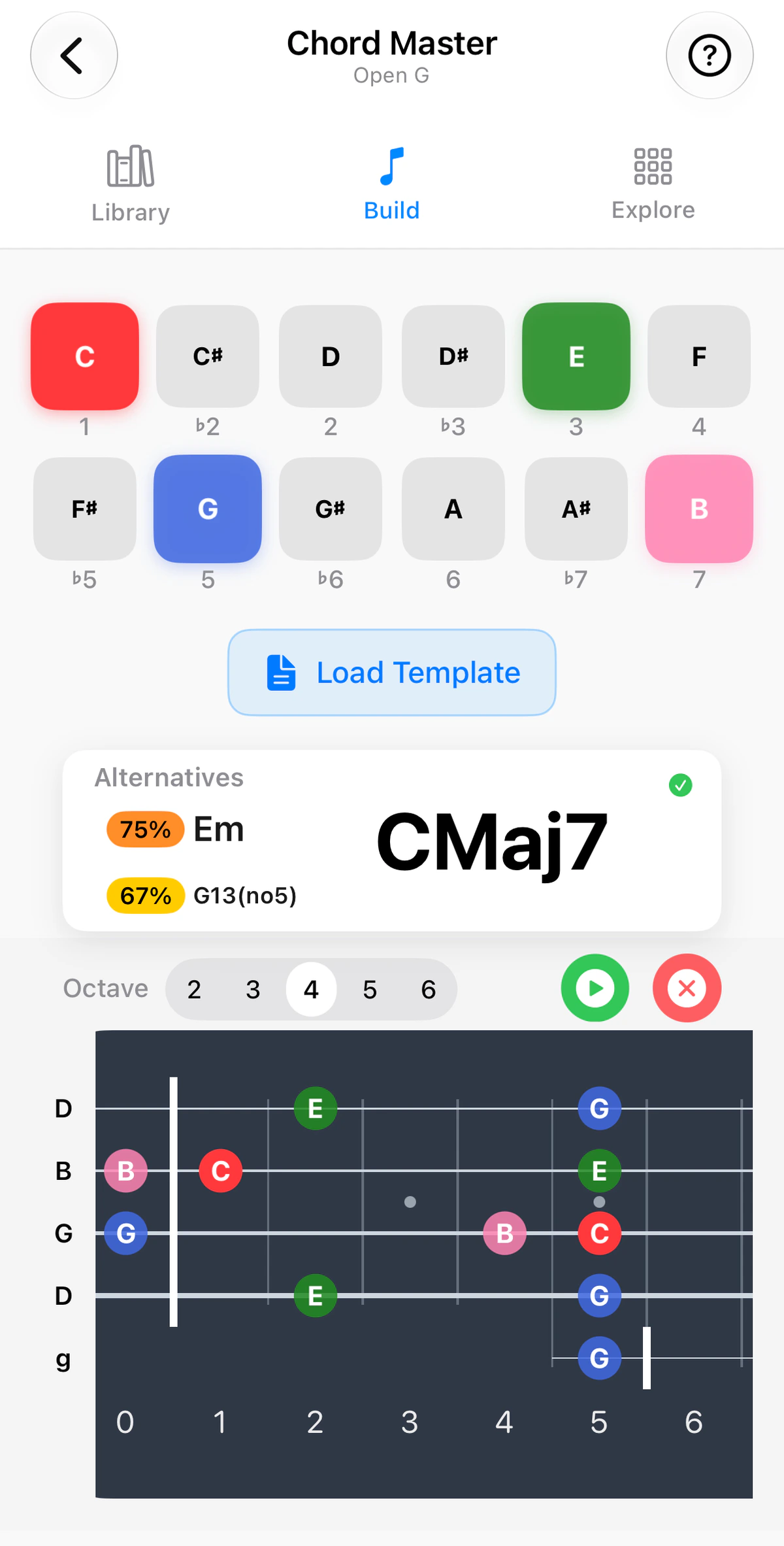
In the first screenshot C, E and G are on, and GTK names the result C. Tap B (the 7) as well and the name changes to CMaj7.
The name and its alternatives
The chord name appears in large type. Beside it, Alternatives lists other chords that fit what you have chosen. They are theoretically close chords, and the percentage beside each shows how close. A green tick means the name is a full match. Tap one to make it the current chord, then carry on building from there. Because the root changes with it, so do the colours and labels. In the third screenshot the Em3 alternative has been tapped, so E becomes the root. The buttons stay in the same order, starting at C, but E turns red and the labels now count from E (E is 1, G is ♭3 and C is ♭6), where C was red before.
On the fretboard
The fretboard shows your notes where they fall on the neck, with your instrument’s tuning and real fret count. Tap the red x to clear all of your selections and start again.
Load a template
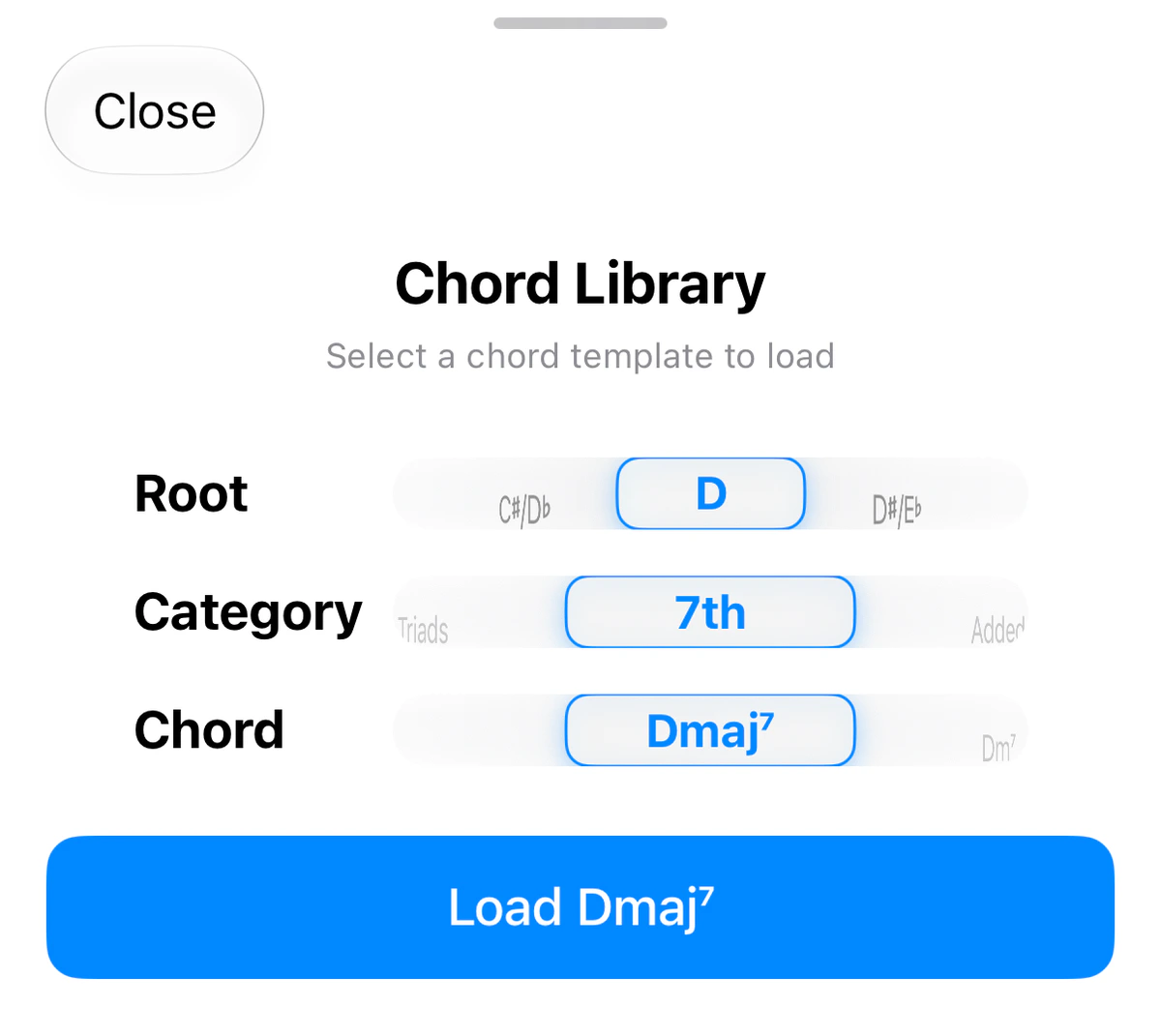
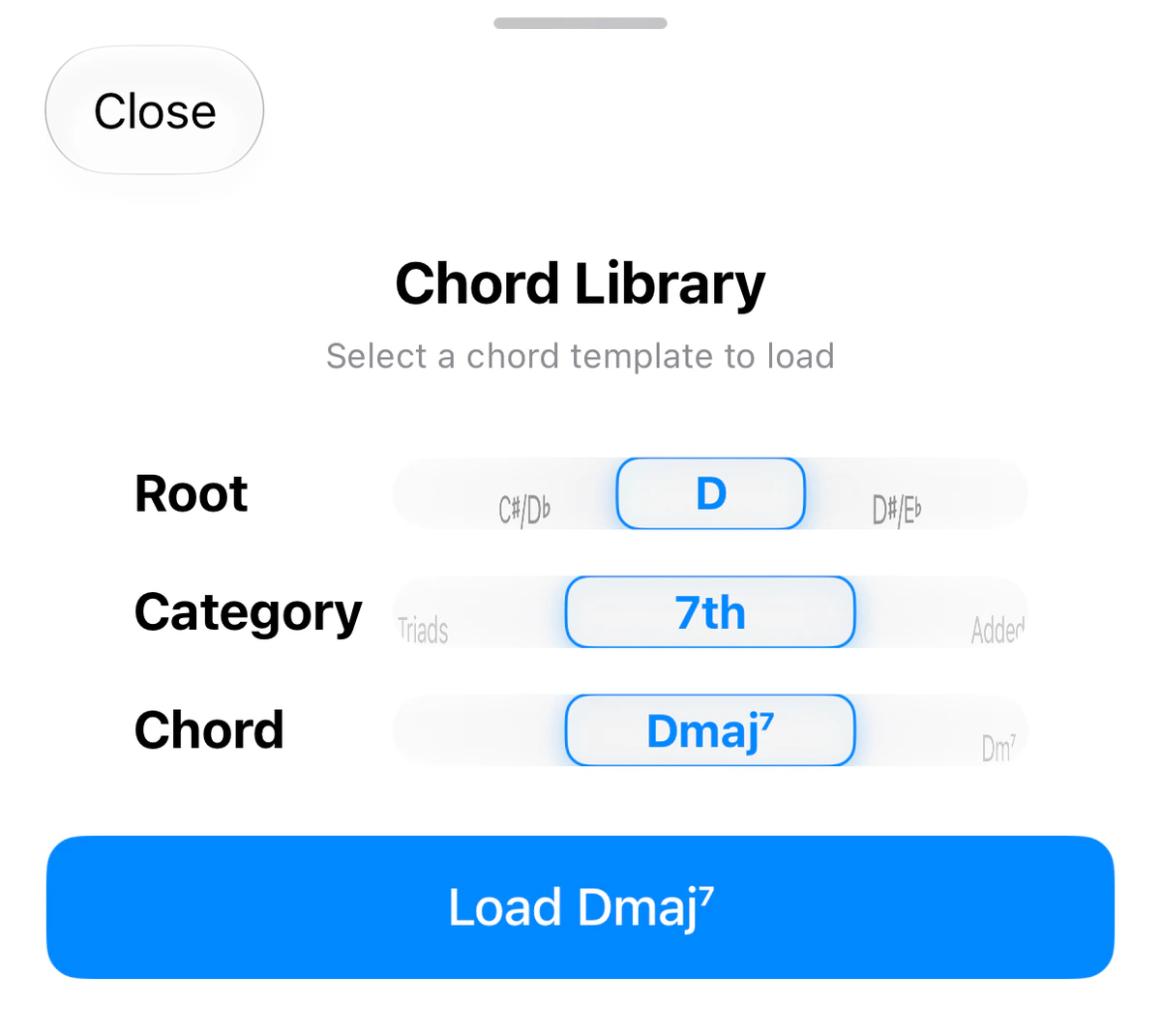
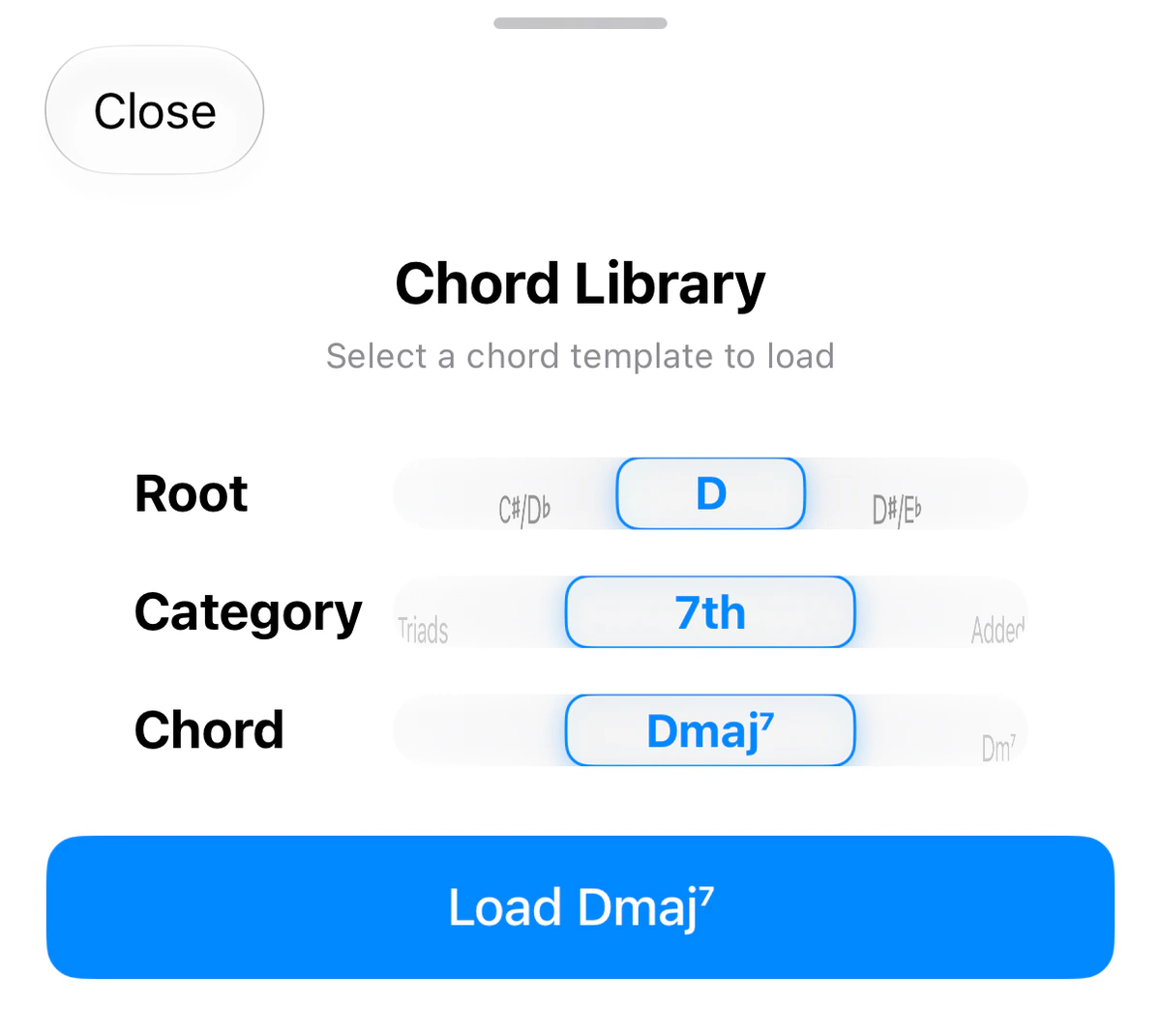
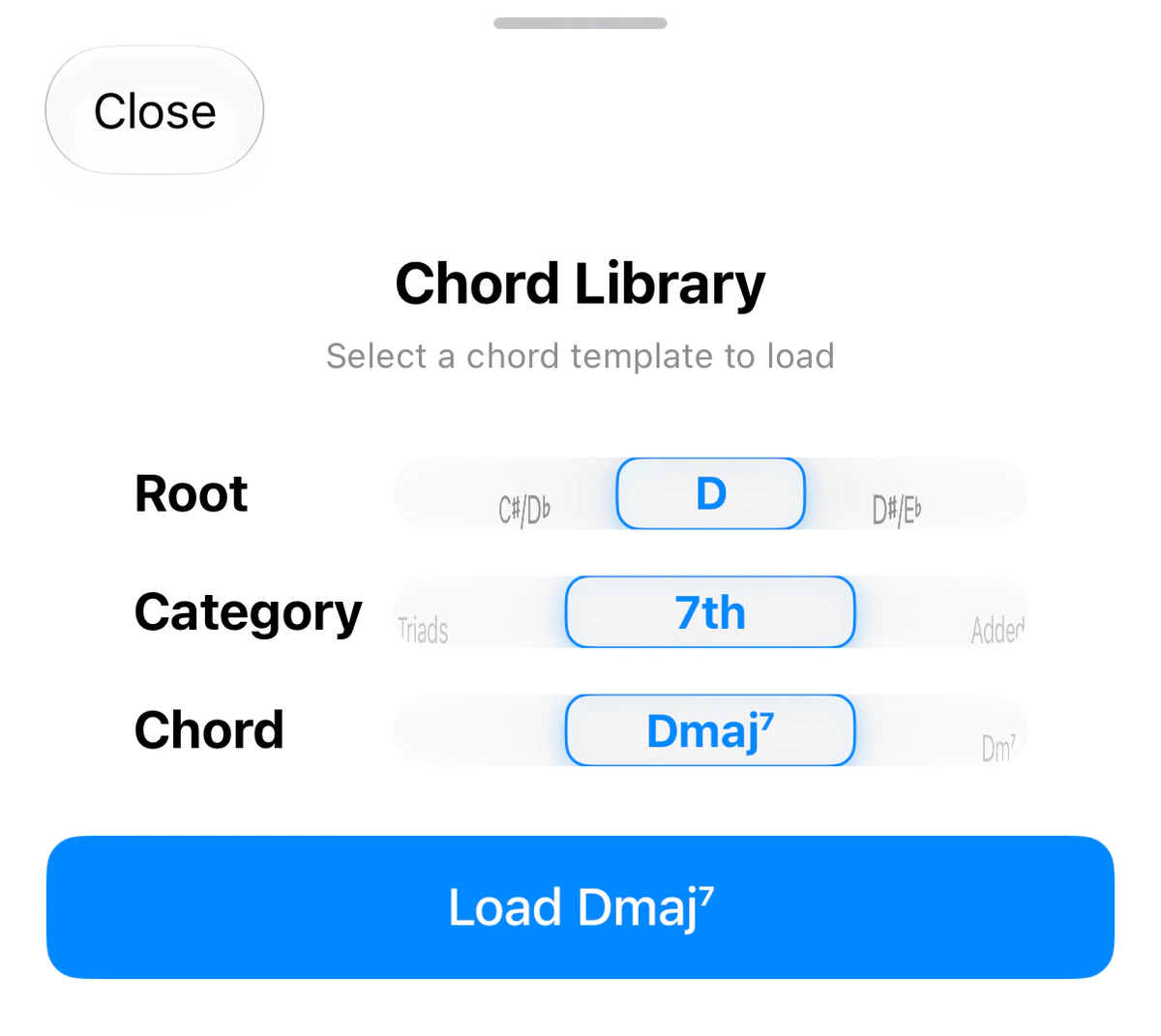
Not sure where to start? Tap Load Template, then choose a Root, a Category (such as Triads, 7th or Added) and a Chord (such as Dmaj⁷), and tap Load. The chord is loaded ready for you to change, for example by adding or removing a note. The interval labels under the note buttons then count from the chord’s root, so after loading Dmaj⁷ the D is 1.
Hear it
Tap the green play button to hear your chord. To hear it in a different octave, change the Octave number (2 to 6) and tap play again.
Keeping and sharing it
To name a voicing yourself, save it and export it to share, see Custom Chords.